How to add llms.txt to Squarespace
Squarespace doesn't allow root-file uploads. Use a URL mapping + a stripped page, or front the domain with Cloudflare for full header control.
Before you start
- ✓Business plan or higher (for URL mappings)
- ✓Site admin access
- ✓Optional: Cloudflare account for the most reliable approach
Install in 4 steps
- 1
Create a page with slug 'llms-txt'
Use a blank layout. Paste your Markdown into a code block.
- 2
Add a URL mapping
Settings → Advanced → URL Mappings: '/llms.txt -> /llms-txt 301'.
- 3
Strip the chrome
Apply a custom CSS rule that hides header/footer for this page (.collection-llms-txt header, .collection-llms-txt footer { display:none }).
- 4
Verify
Fetch with curl. If Squarespace still wraps it in HTML, route through Cloudflare and rewrite the response.
Troubleshooting
Squarespace returns text/html for everything. Front the domain with a Cloudflare Worker that rewrites Content-Type to text/plain.
Personal plans don't support URL mappings. Upgrade to Business or set up Cloudflare in front.
Common gotchas
- • Squarespace returns text/html for everything — Cloudflare Workers can rewrite to text/plain
- • Personal plans don't support URL mappings — upgrade or use Cloudflare
Generate your llms.txt in 30 seconds
Use the free OptimAIze generator, then follow the steps above to deploy on Squarespace.
Frequently asked questions
Does Squarespace need both llms.txt and robots.txt?
Yes. robots.txt grants crawler permission; llms.txt curates which pages matter. Together they form the minimum AI-search setup on any Squarespace site.
Will adding llms.txt slow down my site?
No. It's a tiny static text file fetched once and cached aggressively. Page-load impact is effectively zero.
How often should I update llms.txt?
Whenever your canonical content set changes — new docs section, new product line, new pricing page. A monthly review is a sensible cadence for most sites.
Can I see whether AI engines read my llms.txt?
Check your server logs for user agents like GPTBot, ClaudeBot, PerplexityBot, and Google-Extended hitting /llms.txt. Most sites see traffic within days of publishing.
Other platforms
Squarespace: practical verification
Apply this checklist to Squarespace, keeping the relevant page URL, audience language and verification date. Check the topic-specific information above before using a general recommendation. Record the actual output and cited sources; do not infer a ranking or a market benchmark from a technical score.
What llms.txt does—and does not do
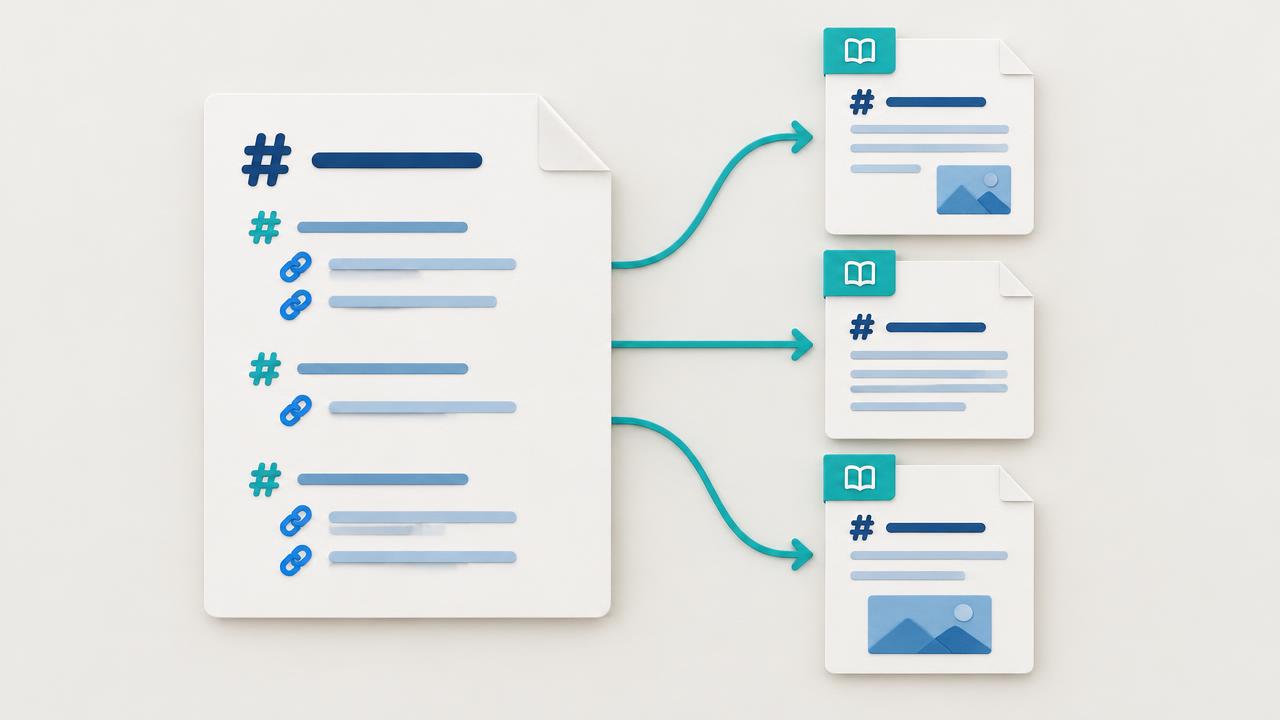
llms.txt is a proposed Markdown convention for presenting a concise site overview and curated links. It is not a robots policy, licensing agreement, authentication control or universal AI indexing requirement. An H1 site name, a useful summary and organized Markdown links help readers understand the site. The proposal does not mandate a section literally called Docs or a universal 150-character summary. Adoption differs by consumer; do not claim that every major AI crawler reads it.
Deploy at the public root without changing the site
Serve the file at /llms.txt with a successful response containing the intended text, not a themed HTML error page or sign-in screen. Use your CMS’s supported public-file feature, a static hosting asset or an explicitly configured text response. If the platform reserves root paths, confirm an officially supported deployment method before adding a plugin or proxy. Check the custom domain as well as the hosting preview, because redirects and caches can behave differently.
Choose a small set of useful destination pages
Link stable canonical pages: product overview, pricing, documentation, support policies and important guides. Use descriptive link labels and optional concise context so a reader knows what each page covers. Absolute HTTPS links are a practical publishing choice, not evidence that relative links automatically trigger HTTP errors. Exclude private dashboards, draft pages, tracking URLs and obsolete content. Keep linked information and translations current; do not list a page merely to inflate the file.
Verify after publishing and after important changes
Fetch the deployed file and inspect the response body, status and content type; text/plain with a UTF-8 charset is a sensible default. Follow the destination links to confirm they are public and relevant. Compare the live file with the version you intended to deploy after cache invalidation. A validator can identify formatting and link problems, but it cannot prove that an engine read the file or that a future answer will cite your site.
Evidence and next actions
| Check | Evidence to retain | Action |
|---|---|---|
| File response | Successful /llms.txt response and readable Markdown | Fix HTML fallbacks and private routes |
| Site identity | A clear H1 and concise factual overview | Remove promotional or contradictory claims |
| Content links | Current canonical pages with useful labels | Replace obsolete or redirected links |
| Access policy | Separate robots.txt and authentication settings | Do not put Allow/Disallow rules in llms.txt |
| Maintenance | Published version and destination-page changes | Refresh when products or URLs change |
Implementation checklist
- Confirm your CMS supports the chosen public root-path method.
- Use Markdown, not a copied robots.txt template.
- Describe what the site actually offers.
- Include stable public URLs and clear labels.
- Test the real domain after deployment.
- Treat the file as optional context, not a citation guarantee.
A repeatable workflow
- 1Establish a baseline
Save the page URL, date, language, target market and exact questions before editing. Record what the page actually says and what each tested answer cites; a mention without a source link is not a citation.
- 2Make one coherent change
Resolve the clearest failure first, then check the published page rather than only an editor preview. Keep an implementation log so unrelated redesigns, campaigns or product changes are not mistaken for the effect of this work.
- 3Repeat and compare
Repeat the same questions and technical checks after deployment. Keep engines and measurement conditions consistent, report sample size, and inspect answer accuracy alongside citations. A single response is not a stable ranking.
More questions answered
- Does this guarantee an AI citation?
- No. A crawlable, accurate page can still be omitted. Retrieval, source selection and generated answers vary between products and requests; these checks improve the evidence available, not guarantee placement.
- How do I tell whether an improvement worked?
- Compare like-for-like checks and retain the underlying evidence. Track correct brand mentions, source-linked citations and qualified referral visits separately. Do not call a technical score a traffic forecast or attribute every change to one edit.
- Where are crawl restrictions configured?
- Use robots.txt for preferences addressed to compliant crawlers, and authentication for private content. llms.txt does not enforce either crawl restrictions or a right to use content.
Explore further
Connected guides to keep going — short reads, all internally linked.